Animate old photos
Repair the scratches, add color if you want, then watch them blink and smile. Your scan stays as it is.
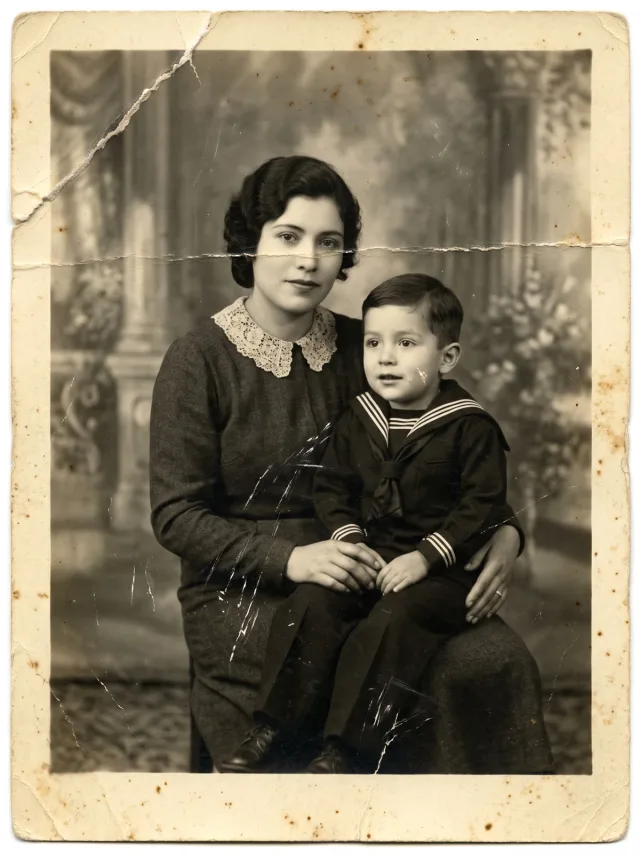
MotionSmile & blink · “Each person blinks slowly and gives a small, warm smile, glancing at the people beside them.”
 MiniMax H3
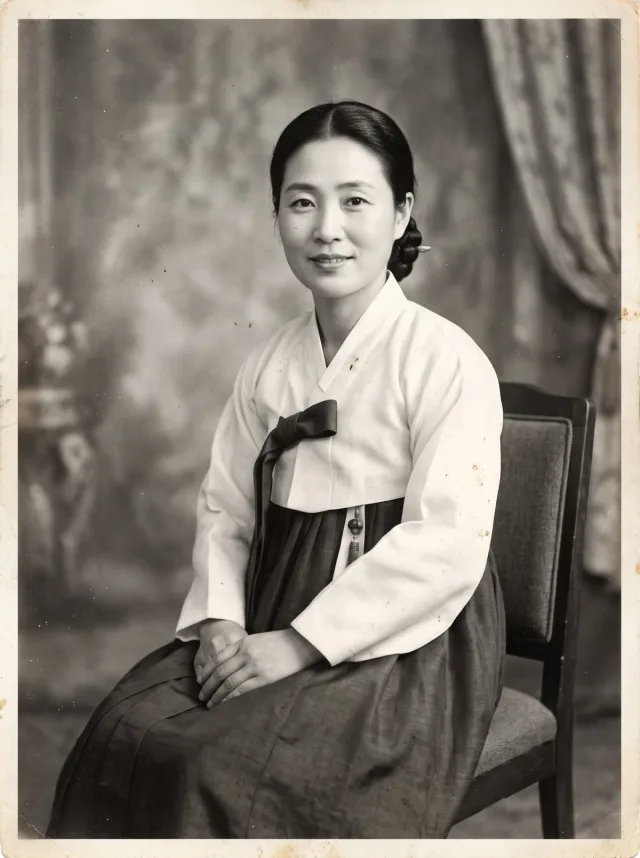
Bring a loved one’s photo to life for a memorial
A 1950s studio portrait in a white hanbok. In the clip she lifts her chin a little and her smile grows slowly over five seconds; nothing else in the room moves, and her face stays her own from the first frame to the last.
Families play these clips on the screen at a memorial or a remembrance dinner, or send them to relatives who never met her. Keep the motion small: a blink and a gentle smile feel like a memory, a big movement feels like a stranger.
Animate an old photo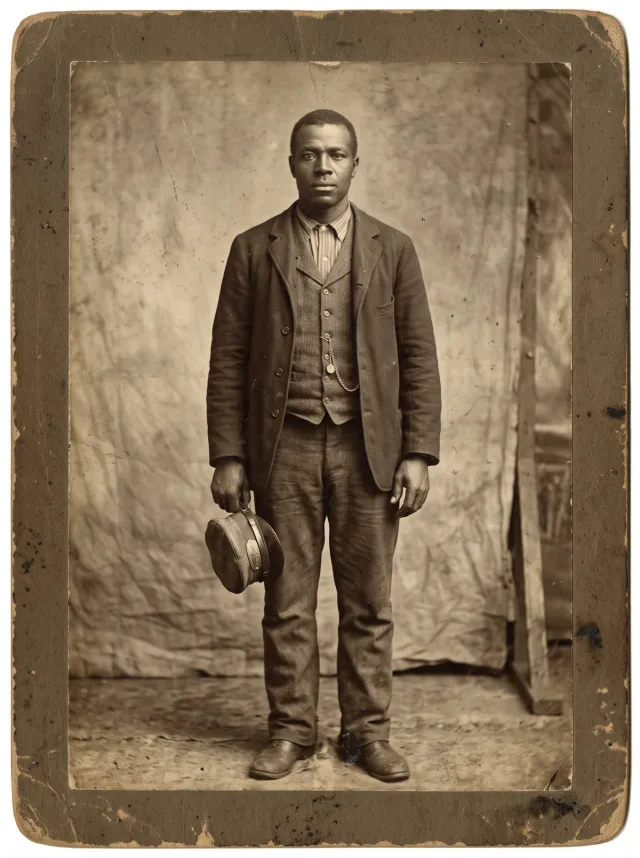
See an ancestor you only know from one picture
A 1910s cabinet card of a railroad worker holding his cap. In the clip he goes from a straight face to a slow, warm smile and looks at the camera the whole time, which is what a studio portrait of that age would never have caught.
If you are building a family tree, a short clip can sit next to the record on the person’s page. Write the name, the year and where the print came from in the caption, so the next relative knows which photo it started from.
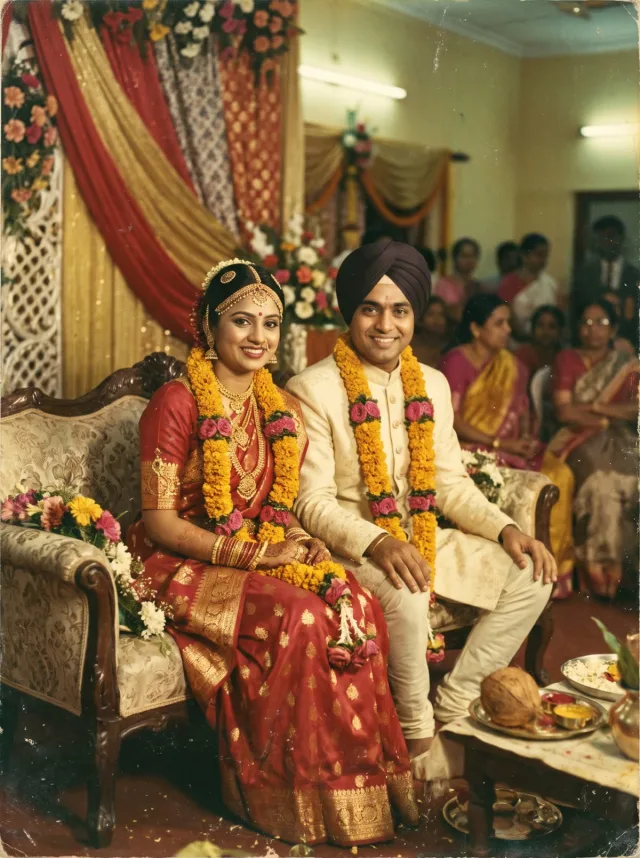
Turn a faded wedding photo into an anniversary surprise
A 1970s wedding print with garlands and a red sari. In the clip the couple turn to each other, laugh, then look back at the camera, while the guests behind them stay where they were.
Play it at a 40th or 50th anniversary, put it at the start of a slideshow, or send it to the couple on the morning of the day. The faded colors of the print stay as they were unless you switch on Add color.
How do you animate an old photo?
Scan or photograph the print, upload it, switch on Repair if scratches cross a face, add color only if you want it, pick a small motion such as Smile & blink, and press Animate. You check the fixed photo first, then get a 5-second video; your original scan is kept unchanged.
- 1
Scan or photograph the print
A flatbed scan at 600 dpi is best. A phone photo works too: take it in daylight, straight on, with the print flat and out of its frame.
- 2
Repair, and color if you like
Repair removes the tear, scratches, spots and creases. Add color is optional and guesses the colors, so leave it off if you want the photo as it was. One or both is 8 credits, only when switched on.
- 3
Pick a small motion
Smile & blink, Look around or Gentle nod. Old photos look best with small movement; a big one makes the face drift away from the person you know.
- 4
Watch, then save
A clip costs 43 credits, or 51 with Repair and color, and took about 41 seconds in our tests. Save it as an MP4 or a GIF, next to the original scan.
What repair and color actually change
One 1930s portrait, three stages. Repair should only take damage away; color is the model’s guess. Drag the line on the face to compare.
A crease straight across her eyes, a crack in the top corner, white scratches on the dress, brown spots, a yellow cast.
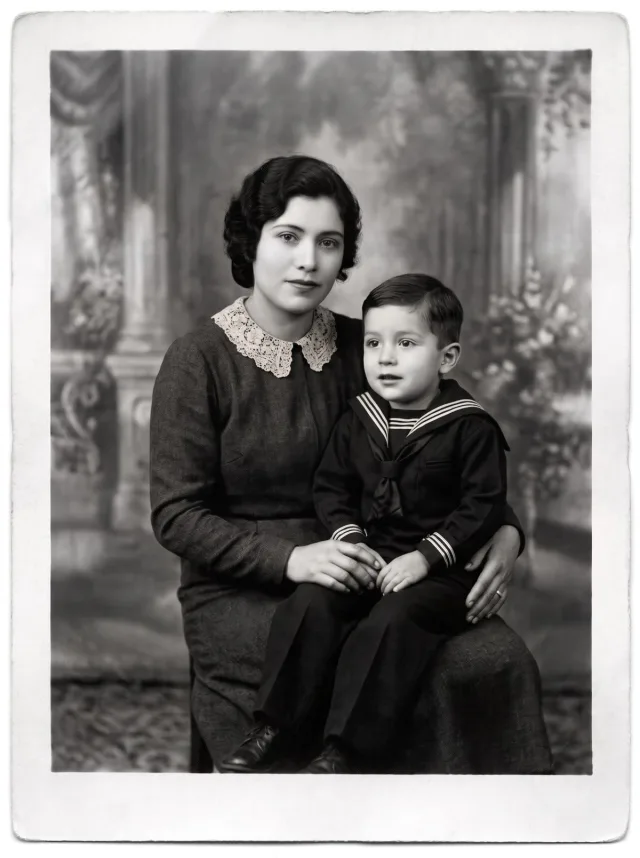
The crease, crack, scratches and spots are gone, and the yellow is now a neutral grey. Both faces, the lace collar and the backdrop are the same as in the scan.
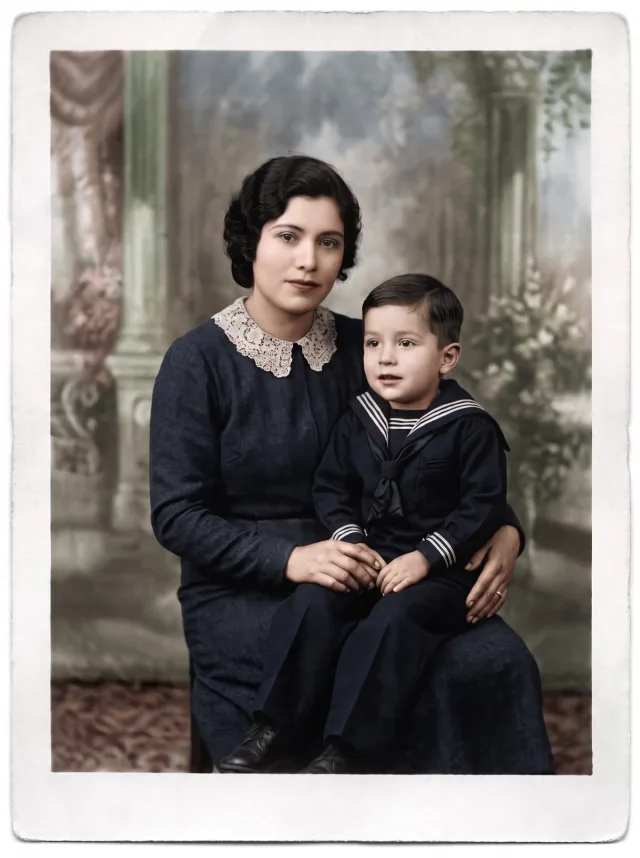
Navy dress, cream collar, green columns, pink curtains, a red rug. Every one of those colors is the model’s choice; the print only had grey.
ScanRepaired- Removed: the crease, the cracked corner, the scratches, the brown spots, the yellow cast.
- Kept: both faces, the expressions, the lace collar, the painted backdrop, the grain.
- Guessed: the strip of her face under the crease (eyes and the top of the nose) was never in the scan, so Repair painted it in. Her skin also came out a little smoother and brighter.
Will my old photo work?
Most pages only show the clips that came out well. These are the four kinds of old photo people worry about, each run once, with what really happened.
A family on the porch
All nine faces held up, down to the baby. They all broke into a smile at the same moment, though, which looks a little staged next to how people really move.
For one person in a group, crop the scan to that face first. The model then has far more pixels to work with.
A side profile
He turned from his side profile to face the camera and gave a small smile. His face from the front was never in the print: the model made it up, and it may not look like him.
Pick Smile & blink or Breathe so he stays in profile. Turn to camera is the one motion to avoid here.
A very dark tintype
Better than we expected. She looked down, then up, then smiled; the dark plate and the scratches stayed as they were, and her face kept its shape.
Scan a tintype at 1200 dpi and don’t brighten it yourself first. The dark tones are part of the look.
A 1970s print gone orange
The boy laughed and leaned toward the camera with his bike, and the motion looked natural. The orange cast stayed, because the clip keeps the colors it is given.
Switch on Repair first if you want the colors back to normal; it also removes fading.
Keep it black and white or add color?
The same repaired photo and the same motion, once as it was and once in color. Neither is the right answer; it depends on who will watch it.
| Keep black and white | Add color | |
|---|---|---|
| Looks like | The photo your family remembers | A scene that could be from last year |
| What is real | Every tone was in the print | The colors are the model’s guess |
| Best for | Memorials, family-history pages, archives | Gifts, anniversaries, a slideshow opener |
| Watch out for | Very faded prints can look flat; Repair first | Clothes and eyes in the wrong color; ask a relative who remembers |
How to scan an old photo before you animate it
The model can only animate what it can see. A clean, flat, evenly lit copy of the print matters more than any setting on this page.
Flatbed scanner: 600 dpi for a normal print, 1200 dpi for a small one such as a wallet photo or a tintype. Save as JPG or PNG.
1Take it out of the frame
Glass adds glare and a second reflection of the room. If the print is stuck to the glass, photograph it through the glass rather than tearing it.
2Use soft daylight
Near a window, out of direct sun, no flash. Flash leaves a bright patch that Repair can’t tell from a stain.
3Hold the phone parallel
Straight above the print, filling the frame. A tilted shot makes faces lean, and the motion makes it worse.
4Leave the dust alone
Brush loose dust off with a soft brush, but don’t wipe or wet the print. Repair handles spots and scratches.
Before you send it to the family
Four things to do before an animated old photo leaves your phone.
Keep the original scan
Save the untouched scan in the same folder as the video. The clip is a new picture made from it, not a better copy of it.
Ask the family first
A moving face of someone who has died can be a comfort to one person and upsetting to another. Ask the closest relatives before it goes in a group chat.
Say that it is AI
Write “animated with AI from a 1934 photo” in the caption. Without it, a clip can pass as real film of that day within a few shares.
Keep it gentle
A blink and a smile, not words they never said. Making someone who has died speak is a bigger step; talk about it with the family first.
Old photos: your questions
About scanning, repairing, coloring and sharing old family photos. Plans and refunds are on the pricing page.
How do I animate an old photo?
Scan the print or photograph it in daylight, upload it, turn on Repair if there are scratches or creases on a face, choose Add color only if you want color, pick a small motion and press Animate. A 5-second clip is ready in about a minute.
Should I restore an old photo before animating it?
Yes, if damage crosses a face. A crease or scratch on a face moves with the face and can turn into a strange wrinkle or a twitch. Damage on the background matters much less.
Will it work on a group photo, a side profile or a very dark photo?
Usually, and we tried all three. In a family of nine every face held up; a side profile moved too, but if he turns to the camera the front of his face is made up; a very dark tintype worked without brightening. Crop to one face if that is the one you care about.
Should I colorize it or keep it black and white?
Keep it black and white for memorials and family history, because every tone is real. Add color for a gift or a slideshow, and tell people the colors are a guess.
Do repair and color cost extra?
Yes, a little. Repair and Add color are done in one edit of the photo, 8 credits for one or both, on top of the clip’s 43 at 768p, so a repaired clip in color is 51. Leave both off and you don’t pay for it; a clean print needs no Repair. Your first clip is free once you confirm your email, so you can animate old photos free to see one of yours before you buy credits; with Repair or color on it is 8 credits more.
Is it okay to animate a photo of someone who has died?
Many families find it moving, and some find it upsetting. Ask the closest relatives first, keep the motion gentle, and say it was animated with AI when you share it.
Does it change my original scan?
No. The scan you upload is kept as it is and saved next to the video. Repair and color make a new image, which you can download on its own too.


Find the shoebox of old prints
Your first clip is free once you confirm your email. Repair and color are 8 credits for one or both, only if you want them.