GIF compressor
Shrink a GIF until it fits, and see exactly what each setting costs before you download. Your GIF stays on your device.
 BeforeAfter
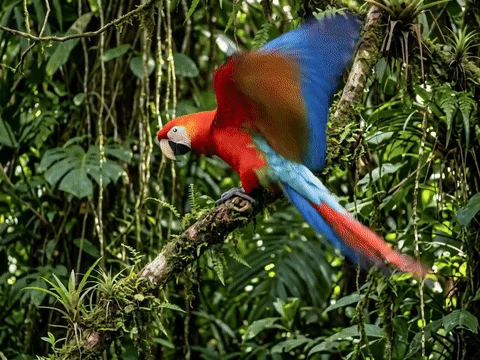
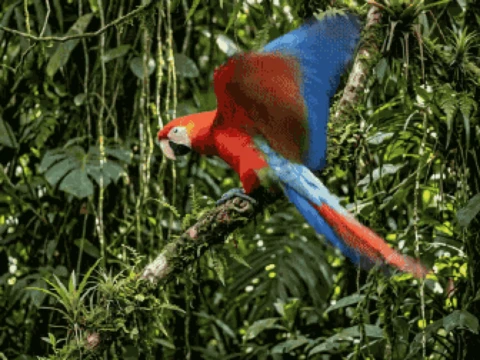
Fit to 1000 KBThis 48-frame macaw was 4.8 MB. Typing 1000 KB and pressing Fit found 64 colors, lossy 100 and 70% width (336 px). Drag the slider to compare.
A sticker too big to send in chat
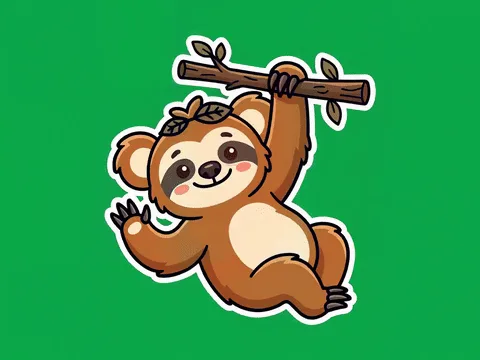
The waving sloth was 2.4 MB, heavy for a reaction in a group chat. Cut to 64 colors it came out at 827 KB, 66% smaller, and next to the original we couldn't tell which was which.
Cartoons and stickers are made of flat colors, so they never needed 256 shades. Start at 64, and look closely at any shading before you go lower.
A header GIF your readers actually see move
This kitchen clip was 4.5 MB, too much for the top of a newsletter. We typed 1000 KB and pressed Fit: 64 colors, lossy 100 and 80% width brought it to 983 KB, 79% smaller and still 384 px wide.
The whole file has to arrive before a GIF plays through, so every megabyte you cut is one your reader doesn’t sit through on a slow connection.
A screen recording for your help page
We recorded five seconds of our own site: 1.0 MB. Saving it again with nothing changed already took off 27%, because the tool only keeps the pixels that change from one frame to the next.
Lossy 60 took it to 464 KB, 56% smaller, and the buttons and labels stayed readable. Screen recordings are mostly still, which is where this tool saves the most.
How do I compress a GIF?
To compress a GIF, drop it into the box, then lower the colors, add lossy compression, drop every other frame or make it narrower, watching the new size and the preview as you go. Or type the size you need and let the tool find the lightest settings. It all runs in your browser, so the GIF is never uploaded.
- 1
Drop your GIF in
Drag it onto the box, paste it, or try one of ours. It opens in this tab, so nothing is uploaded and nothing waits in a queue.
- 2
Pick a way to shrink it
Fewer colors, lossy, every other frame or a narrower picture. Mix them as you like; the new size shows after each change.
- 3
Or type the size you need
Type 1000 KB, say, and press Fit. It tries colors first, then lossy, then width, and drops frames only as a last step.
- 4
Compare, then download
Drag the slider across the picture to check faces and text, then save a GIF, or a WebP. Free, with no sign-up and no watermark.
One GIF, four ways to make it smaller
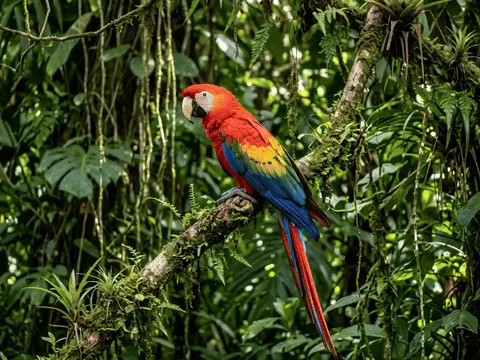
The same 4.8 MB macaw, 48 frames at 480 px, through each setting on its own. Every size is the file the tool saved; each close-up is the head at four times.
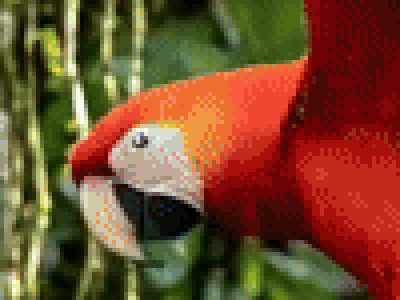
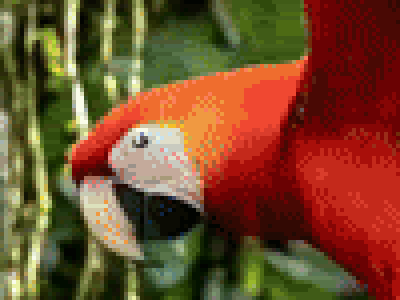
Lossy 100
Lets neighbouring pixels share a color so the file repeats itself more. Up close the leaves go a little streaky. On this photo-like GIF, lossy 30 saved only 8% and lossy 60 15%.
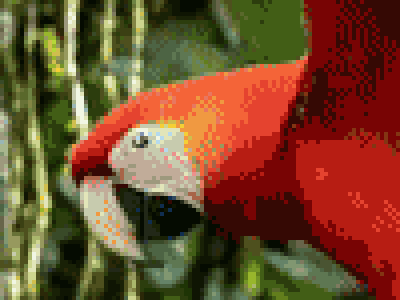
64 colors
Keeps the 64 colors that matter most. The red feathers turn dotted where 256 shades used to blend. 128 colors saved 29%, 32 colors 64%.


Every other frame
Keeps 24 of the 48 frames and shows each one twice as long, so it still lasts 4 seconds. The wing beat looks jumpier.
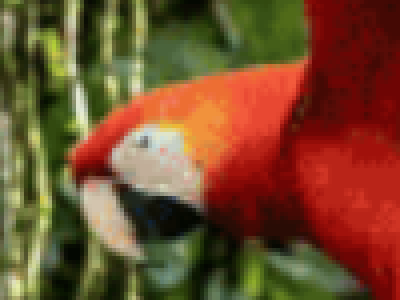
2/3 width
320 px wide instead of 480. The biggest cut of the four, with no grain or blotches; stretched back to 480 it looks softer.
Rule of thumb: on a photo-like GIF, go narrower first, then fewer colors. Lossy only pays off near the top of its range.
Why some compressed GIFs play too fast
A GIF stores how long to show each frame. Throw half the frames away but keep those times, and the whole thing plays in half the time.
This tool
Each kept frame gets the time of the frame it replaced: 24 frames, 4.0 seconds, same pace as the original.
Times left alone
The same 24 frames at their old times: 2.0 seconds, and the macaw flaps at double speed.
Both files are 2.5 MB. The only difference is the timing.
Which GIF, which way
What saves the most depends on what is in the GIF. We ran every setting on four kinds of GIF and kept the winner.
Photo-like: go narrower
2/3 width took the macaw from 4.8 MB to 1.9 MB, 61% smaller, with no grain at all.
Next best: 64 colors saved 47%.
Flat cartoon: fewer colors
64 colors took the sloth from 2.4 MB to 827 KB, 66% smaller, and it looks the same.
Saving it again with nothing changed already saved 36%.
Screen recording: lossy
Lossy 60 took our recording from 1.0 MB to 464 KB, 56% smaller, text still readable.
64 colors came close: 55% smaller.
Already shrunk: width or frames
A 240 px macaw at 1.1 MB: saving again gained nothing and lossy 60 only 2%. 2/3 width made it 538 KB, 51% smaller.
Every other frame: 615 KB, 44% smaller.
Need it under a certain size?
Type the size and press Fit. Here is the 4.8 MB macaw fitted to four sizes, each shown at the width it came out.
- 64 colors
- Lossy 100
- 70% width · 336 px
We don’t list app limits here because they change. Type the number the app or site shows you.
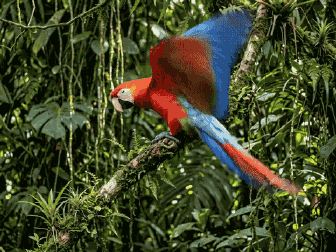 Original · 480 px
1000 KB336 × 252 px · −80%
GIF or WebP: which comes out smaller?
Often WebP, but not always. Five GIFs saved again as GIF with nothing changed, and as WebP at quality 90.
WebP won on four of the five. The white sneaker went from 1.7 MB to 391 KB as WebP.
The screen recording went the other way: as WebP it was 1.6 MB, bigger than the 1.0 MB original, because each WebP frame is stored whole while the GIF keeps only what changed.
GIF plays almost everywhere. Before you switch, check that the place you post it accepts WebP.
GIF compressor questions
Answered from the GIFs on this page.
How do I compress a GIF?
Drop the GIF into the box at the top and press Compress GIF. Then change the colors, lossy, frames or width and watch the new size update, or type a size and press Fit. When the size is right, drag the slider to compare and download.
How do I make a GIF smaller without it looking worse?
Match the setting to the GIF. On our tests, 64 colors cut a cartoon by 66%, lossy 60 cut a screen recording by 56% and 2/3 width cut a photo-like GIF by 61%, each with changes that are hard to see at normal size. Drag the slider over faces and text before you save.
How do I get a GIF under a certain size?
Type the size into the box under the settings and press Fit. The tool tries fewer colors, then lossy, then a narrower picture, then dropping frames, and stops at the first try that fits. If even its last try is too big, it says so and keeps the smallest it made, so you can trim the GIF first.
Which setting saves the most?
It depends on the GIF. On the macaw, 2/3 width saved 61%. On the sloth, 64 colors saved 66%. On our screen recording, lossy 60 saved 56%. On a GIF that had already been shrunk, only a narrower picture or fewer frames helped.
Why does my compressed GIF play faster?
Because frames were dropped and the frames left kept their old times, so the GIF ends sooner. This tool gives each kept frame the time of the ones it replaced, so a GIF with every other frame removed lasts exactly as long as before.
Will the transparent background stay?
Yes. See-through pixels stay see-through in the GIF and in the WebP, and when you make a GIF narrower the edges don’t pick up a dark fringe from the empty pixels around them.
Is my GIF uploaded?
No. The GIF is opened, compressed and saved inside this browser tab, and never sent to a server. There is no sign-up, no watermark and no limit on how many GIFs you compress.
Should I save it as WebP instead?
Try both: the size shows before you download. In our tests WebP was smaller for four GIFs out of five, but for a screen recording it was 1.6 MB, bigger than the 1.0 MB GIF. GIF also plays in more places, so check that yours accepts WebP.
How big a GIF can it take?
Files up to 50 MB and 300 frames. A GIF wider than 960 px is opened at 960 px wide, and the width setting works from there. For a longer GIF, cut it to the part you need first.
More GIF tools

Want a GIF that starts small?
Make one with AI from a single photo, then bring it back here if it needs to be smaller.