How to bring old photos to life
One faded print, three steps — fix the damage, add color, then let it move. Here’s each step on a real example, and what the whole thing costs.
To bring an old photo to life, first restore it to remove scratches and fading, then colorize it if you want color, and finally animate it so the people in it move. Restoring and colorizing are small photo runs, and a 5-second animation is 43 credits. You can bring old photos to life for free over two days: one day’s free credits cover one restore or one colorize, and the free credits for verifying your email pay for the animation.
Each step was made with the models behind our restore, colorize and animate tools · Updated 2026-11-12
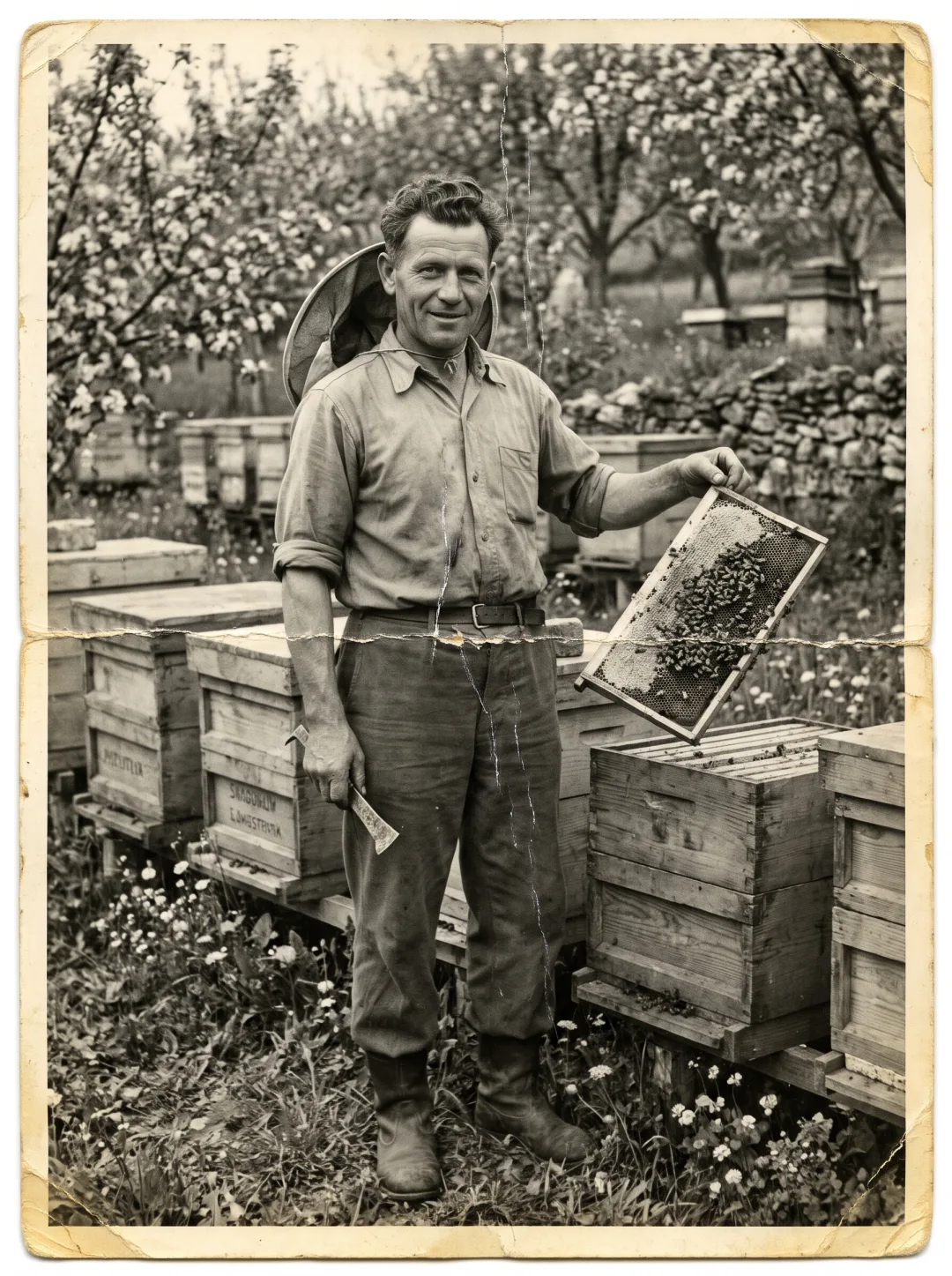 The creased printRestored, colorized, moving
One 1950s print, four frames
A beekeeper in an orchard, with a fold right across the picture, a few scratches and yellowed corners. Here is the same print after each step.
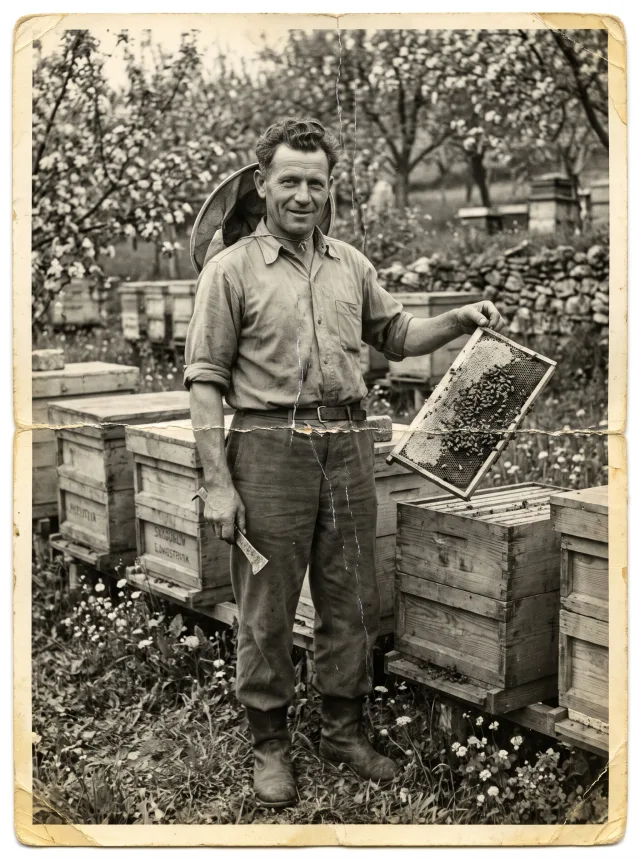 The print
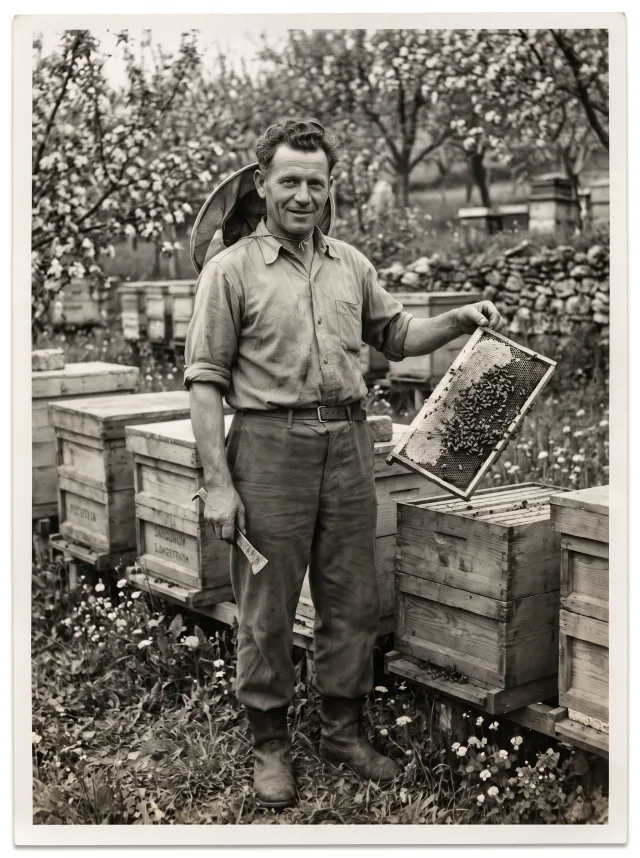 Restored
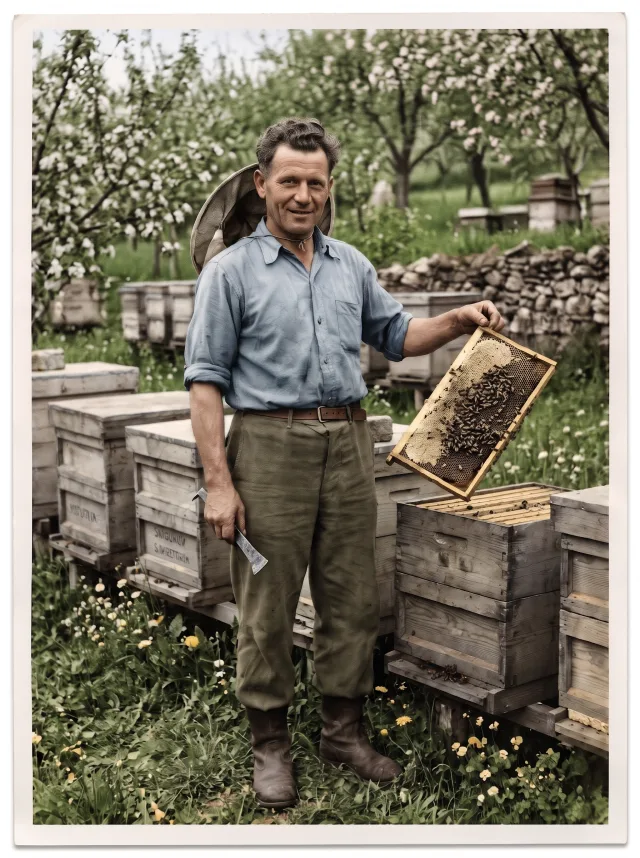 ColorizedMoving
Restoring took the crease and scratches out and kept it black and white. Colorizing gave the orchard its green, his shirt a faded blue and the comb its gold. Animating let him lift the frame. In our runs the three steps took 44, 30 and 30 seconds.
The beekeeper is a generated vintage-style photo, not a real family photo.
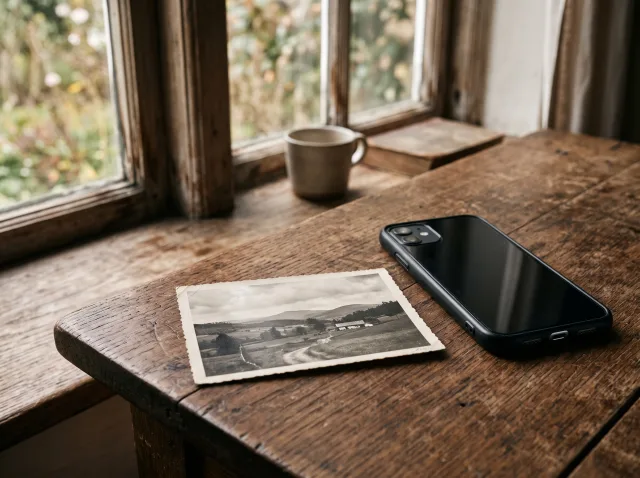
Get the print into your phone first
Every step after this one works on the copy, not the paper, so the copy is worth five minutes. A flatbed scanner gives the cleanest result if you have one; most people use their phone, and that is fine too.
With a phone, lay the print flat on a table next to a window and turn off the flash: a flash bounces straight back off glossy paper. Stand over it rather than at an angle, so the picture stays rectangular, and fill the screen with the print, border and all. Take three or four shots and keep the sharpest.
- Daylight from the side, flash off.
- Phone parallel to the table, not tilted.
- The print fills the screen, edges included.
How to bring old photos to life with AI
Restore, colorize, animate: three tools, one after another, each starting from what the last one gave you. You can stop after any step.
- 1
Bring the old photo back: restore it
Upload the copy to Photo Restoration. It takes out folds, scratches, spots and yellowing and sharpens the face, while keeping the photo black and white. Ours took 44 seconds. Check the face before you go on; if it no longer looks like them, run it again.
- 2
Add color
Send the restored photo to Colorize Photo. The colours are a careful guess from the era and the materials, not a record, so if someone remembers the real colour of a dress or a car, say it in the box. Ours took 30 seconds.
- 3
Write one small movement
Upload the colorized photo to the animator and describe one action the person would really make, then say what stays still. A lifted tool, a turn of the head or a smile works better than walking or dancing.
- 4
Let it move and save it
43 credits for 5 seconds with sound. In our run he lifted the frame and looked at it; the bees stayed on the comb rather than flying, so small things in the air don’t always appear. If a run fails, the credits come back.
Animated without restoring
Our run: he made the same movement, but the fold and the long scratch stayed fixed in place while he moved behind them, like marks on a window. Once something moves, damage stops looking like part of the photo.
Why restore first, and animate last?
We animated the original, unrepaired print with the very same sentence to see what skipping the first step does.
Restore before you add color
Colour goes on top of whatever is there. Scratches and spots get coloured in along with everything else, and they’re harder to remove afterwards.
Colorize before you animate
A still is easy to check and cheap to redo. Get the colours right on the photo, then spend the animation on a picture you’re happy with.
Check the face after every step
Each step redraws a little of the photo. Compare the face with the original print each time; if it drifts, go back one step, not three.
A failed or blocked run hands its credits back on its own.
A second print: faded, but not damaged
Not every photo needs all three steps. This 1960s seamstress was only faded to brown, with no tears or scratches, so we skipped restoring.
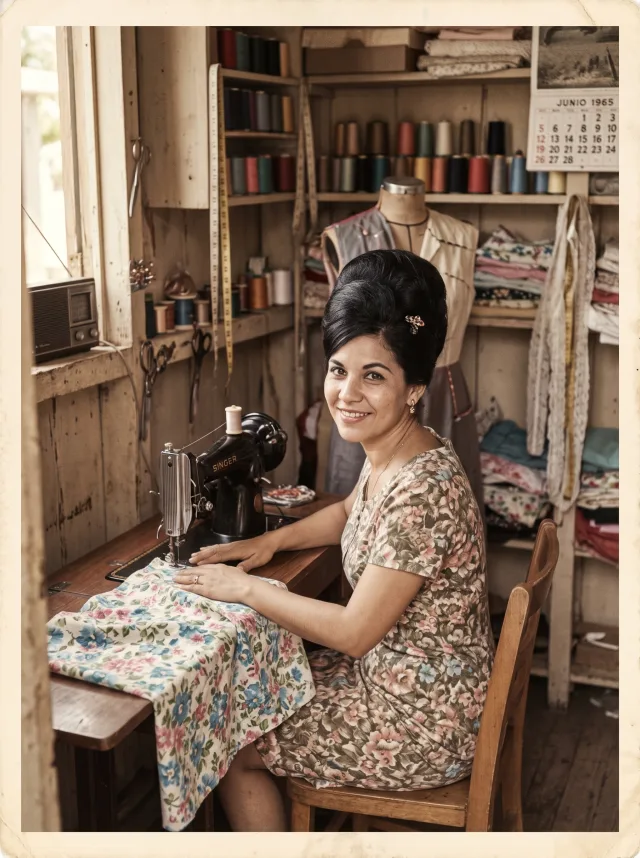 Faded print
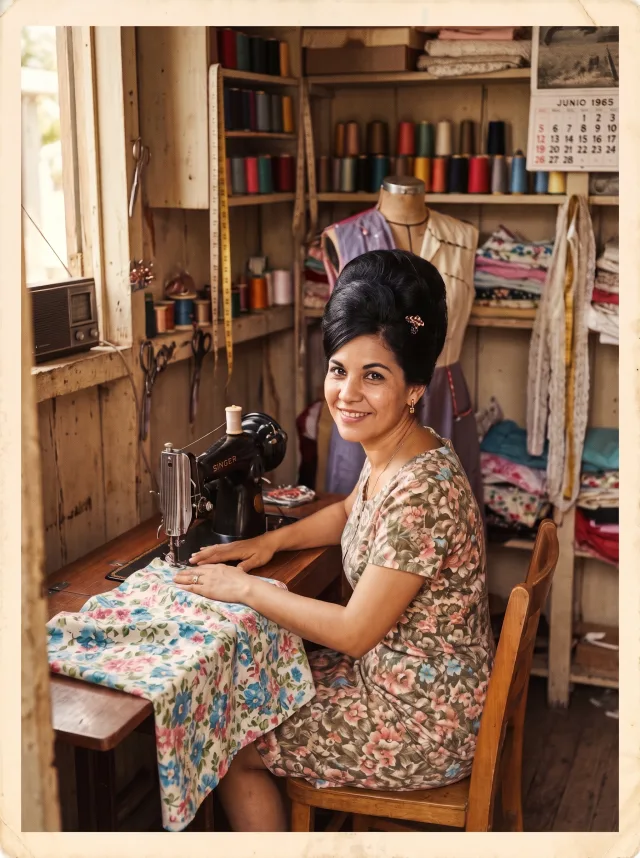 ColorizedMoving
Colorizing brought back a bright floral dress and the colourful thread on the shelves in 39 seconds. Then we wrote: “She feeds the fabric through the machine and glances up with a smile; the room stays still.” Animating took 29 seconds: she fed the fabric through the machine, looked down at it, then up at the camera with a smile, and her face held.
The seamstress is a generated vintage-style photo, not a real family photo.
Bring old photos to life for free
Restoring and colorizing are photo runs, and each one fits inside a single day’s free credits. Verified accounts collect those once a day with “Get today’s credits”; they work in the photo tools only and expire at midnight UTC, so they can’t be saved up for a video. The animation is paid by the free credits you get once for verifying your email, which cover exactly one 5-second clip.
So the free route takes two days, and nothing along it adds a watermark. If you’ve already spent the free clip, the last step is 43 credits; the restore and colorize steps stay free whenever you have a day’s credits.
- Day one: collect today’s credits and restore the photo.
- Day two: collect them again, colorize, then animate with the free clip from verifying your email.
- Download all three results: free results are kept for 30 days.
Questions about bringing old photos to life
How much does it cost to restore, colorize and animate one photo?
Restoring and colorizing are small photo runs of 8 credits each, and one day’s free credits (8) cover one of them; the button shows the exact number before you press it. The 5-second animation is 43 credits, which the free credits from verifying your email cover once.
Can I do all three steps on my phone?
Yes. Photograph the print with your phone, then open the three tools in your phone’s browser; nothing to install. Each result downloads to your phone, and you upload it to the next tool from there.
Are the added colors the real colors?
No, they are a believable guess based on the era, the light and what things are made of. In our run the beekeeper got a faded blue shirt and a green orchard, which may or may not be true. If a relative remembers a colour, type it in before you colorize.
How long does the whole chain take?
In our runs, restoring took 44 seconds, colorizing 30 to 39 seconds and each animation 29 or 30 seconds, so under two minutes of waiting for one photo. Scanning the print and checking each step takes longer than the tools do.
Can I skip colorizing and still animate?
Yes, a black-and-white photo moves just as well. Add “keep it black and white” to your sentence: in one of our runs on another page, a black-and-white portrait came back in colour when we didn’t say so.
What should I ask the people in the photo to do?
One small thing they were already about to do: lift what they’re holding, turn their head, smile, nod. Our beekeeper lifted his frame well. Avoid asking anyone to walk out of the frame or wave both arms; big moves are where faces and hands go wrong.
How do I share the result with relatives who don’t use apps?
Send the MP4 the way you’d send any phone video: WhatsApp, a text message or email. For an email that plays on its own without a tap, turn it into a GIF with our free Video to GIF tool first.
Will the free daily credits cover all three steps?
Not on one day, and not the video. One day’s free credits cover one restore or one colorize, and they can’t be used for animation. The animation comes from the free credits for verifying your email, or from a pack.
Keep reading
MyHeritage Deep Nostalgia, explained
One face or the whole scene, and what MyHeritage gives for free.
Open
How to make a picture talk
Three ways to give a photo a voice, and the one that works today.
Open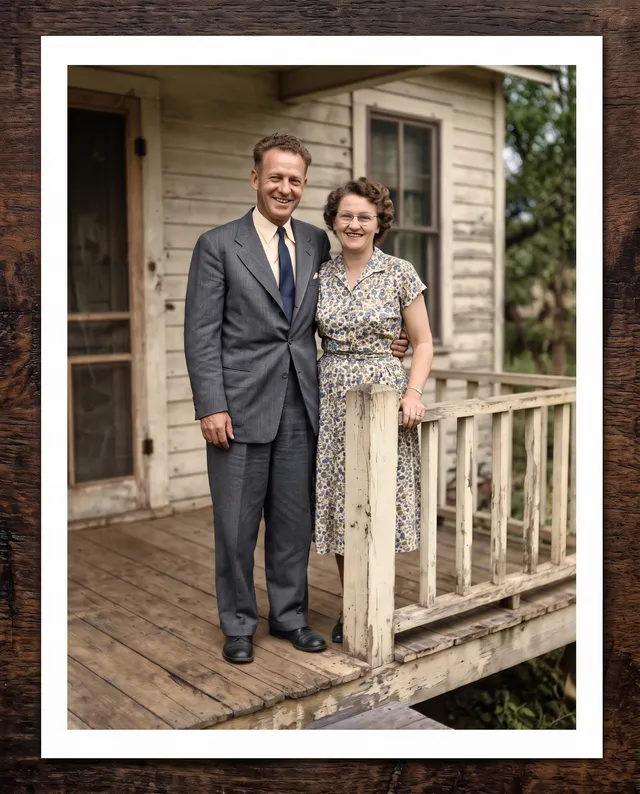
Photo restoration
Take out creases, scratches and fading from a scan or phone shot.
Open
Colorize a photo
Turn a black-and-white photo into a believable colour one.
OpenStart with the print in your drawer
Restore it today, colorize it tomorrow, then let it move. A run that fails gives its credits back.