MyHeritage Deep Nostalgia, explained
What Deep Nostalgia and the newer LiveMemory do to an old photo, how to use them, what you get for free — and when a different tool fits better.
Deep Nostalgia is a MyHeritage feature, introduced in 2021, that animates one face in an old photo so it blinks, turns and smiles, using movements recorded in advance. In 2024 MyHeritage added LiveMemory, which animates the whole photo into a 5-second clip. MyHeritage’s own pages say both can be tried for free for a limited number of animations, with a watermark, and that more need a subscription.
AnimatePhotos is not affiliated with MyHeritage. The clip was made on AnimatePhotos. · Updated 2026-11-12
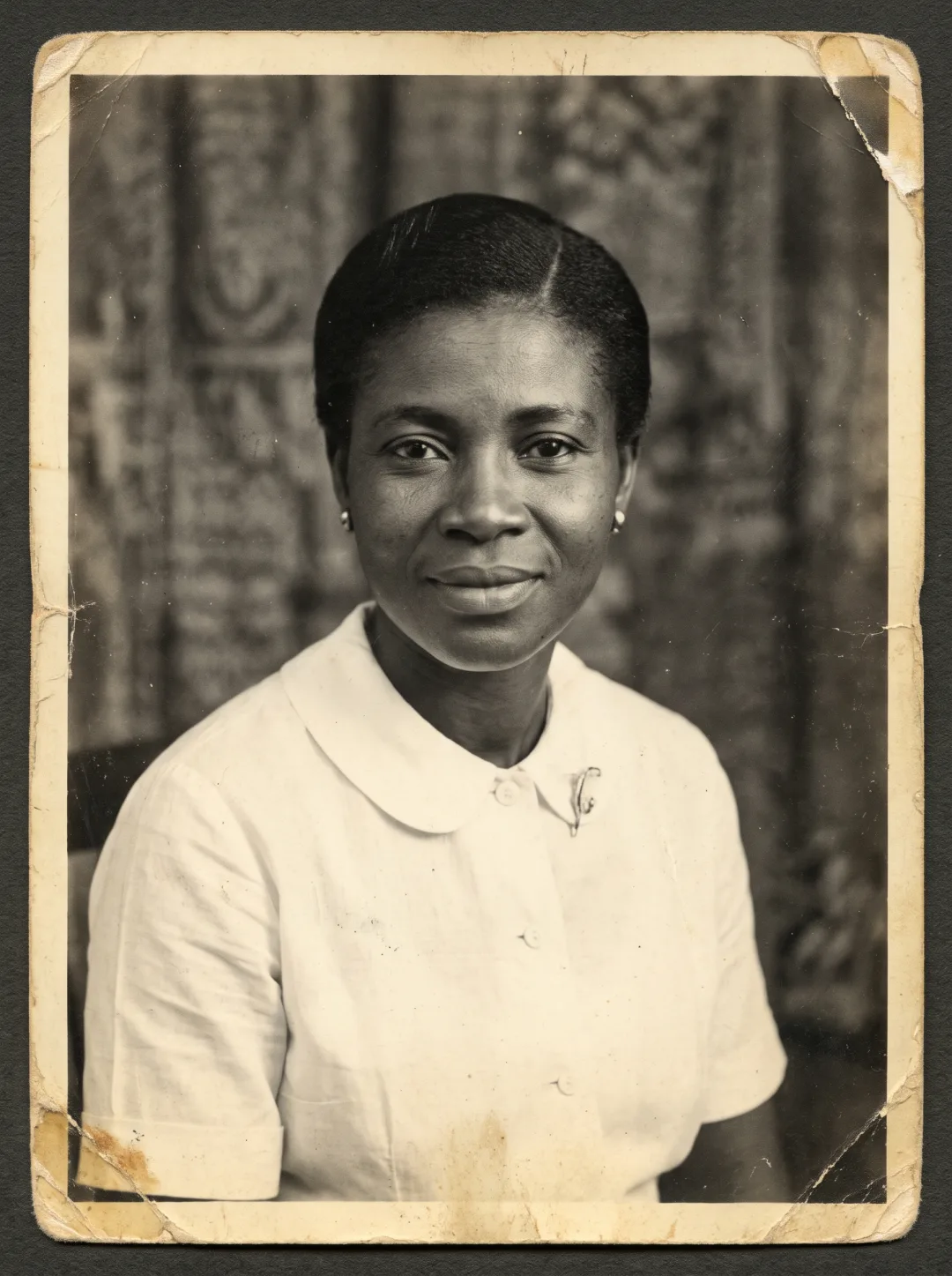 The old printMade on AnimatePhotos
Deep Nostalgia vs LiveMemory
Most people searching for deep nostalgia don’t know it has a younger sibling. Here is how MyHeritage itself describes the two, in its own words and with the year each line was written.
| Compared | Deep Nostalgia (2021) | LiveMemory (2024) |
|---|---|---|
| What moves | “allows you to animate the faces of your loved ones in still photos” | “animates the entire photo to bring the whole scene to life in a highly realistic way” |
| Where the motion comes from | A “pre-recorded driver video that we’ve prepared in advance” | Gestures that, per the 2026 help centre, “include hugging, kissing, dancing, laughing, and singing” |
| What you get | One face at a time: “only faces that have been detected by the algorithm can be animated” | A “5-second video clip” |
| Where you use it | “also available on the free MyHeritage mobile app” | “available on the MyHeritage website and mobile app for iOS and Android” (help centre, 2026) |
| Free | “Other MyHeritage users can create several animations for free.” | “Anyone can try LiveMemory™ for free, for a limited number of videos.” |
| Watermark | Non-subscribers see “a watermark of the MyHeritage logo on the bottom right” | “a watermark labeled ‘AI’ is added” |
Quoted from MyHeritage’s blog posts of February 2021 and November 2024 and its help centre (updated 21 July 2026). Checked 12 Nov 2026; we’ll read them again in December.
Which one should you use?
If you have a single portrait and want the face in it to blink, look around and smile, the effect that went round in 2021, that is Deep Nostalgia. It works face by face and leaves the rest of the picture alone.
If the photo is a scene — a couple on a street, a family at a table, someone at work — LiveMemory is the one that moves the rest of the picture too. Both sit in the same MyHeritage account, so if your family tree already lives there, start where your photos are.
One face, or the whole scene?
To show the difference, we gave one old tram-stop photo two different sentences on AnimatePhotos: one asking only for the faces to move, one asking the street to move as well. Neither clip comes from MyHeritage.
Only the faces move
Both blink and look toward each other; nothing else moves.
Our run: they turned to each other and smiled, and the people behind barely moved. Near the end a car edged in at the far right, so “nothing else” wasn’t quite nothing. 29 seconds.
The whole scene moves
A tram rolls in from the right, their coats move in the wind, and both turn to look at it.
Our run: a yellow tram came in from the right and stopped behind them, their coats swayed and both turned to watch it, faces unchanged. 38 seconds.
The first is the kind of motion Deep Nostalgia makes, the second the kind LiveMemory makes. They show the idea, not how MyHeritage’s own results look.
How to use MyHeritage to animate a photo
These steps follow MyHeritage’s help centre for LiveMemory, updated 21 July 2026. We haven’t walked through them with an account, so if a menu has moved, the help centre article is the place to check.
- 1
Open LiveMemory from the Photos tab
On the MyHeritage website, hover over the “Photos” tab, then click “LiveMemory™”.
- 2
Upload the photo and accept the terms
Click “Upload Photo”, pick the scan or phone shot of your print, and agree to the terms MyHeritage shows before it starts. A sharp, glare-free copy of the print matters more than any setting.
- 3
On a phone, use the MyHeritage app
There is no separate deep nostalgia app: it is part of the MyHeritage app. The 2021 post called Deep Nostalgia “also available on the free MyHeritage mobile app”, and the 2026 help centre lists LiveMemory on iOS and Android.
Is MyHeritage Deep Nostalgia free? What it said, year by year
MyHeritage’s free rules have been written at different times, and the older posts have no “last updated” line. So we don’t merge them into one price; here is each line with its year.
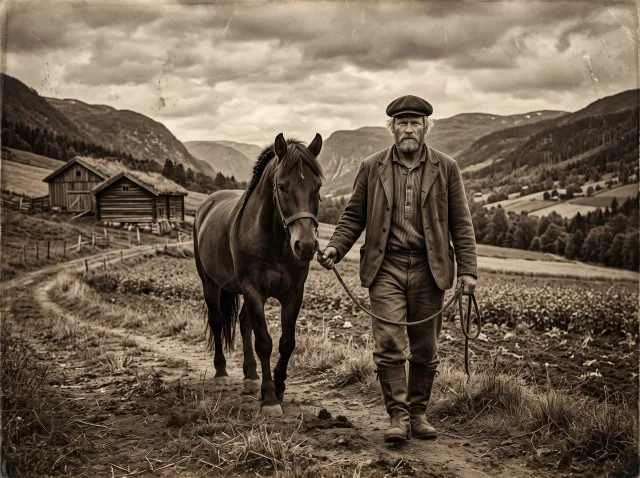 2021 · Deep Nostalgia
A few for free, unlimited on Complete
Other MyHeritage users can create several animations for free.
The same post said a Complete subscription allows “an unlimited number of photos”, and that animations made without a subscription carry the MyHeritage logo in the bottom right corner.
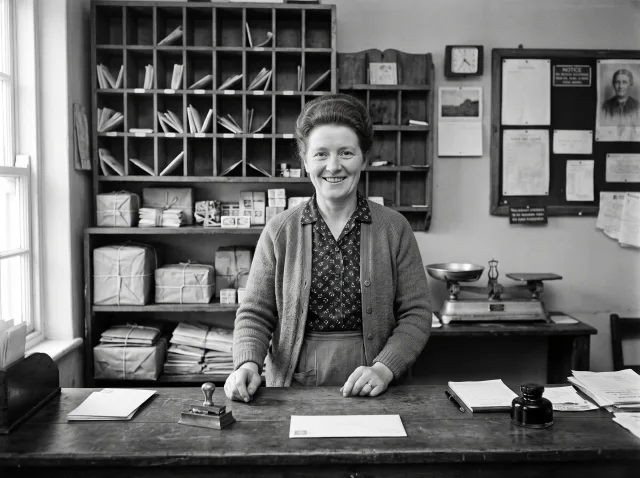 2024 · LiveMemory
A limited number free, then a plan
Anyone can try LiveMemory™ for free, for a limited number of videos.
The launch post added that “Users with a Photo plan can create 20 LiveMemory™ videos annually”, and Omni subscribers 30 a year. It also said “a watermark labeled ‘AI’ is added”.
 2026 · Help centre
No number written down
The help-centre article on Deep Nostalgia, dated 21 July 2026, explains the feature but gives no free allowance. So the fair answer to “is Deep Nostalgia free?” today: you can try it, and the page doesn’t say how many times.
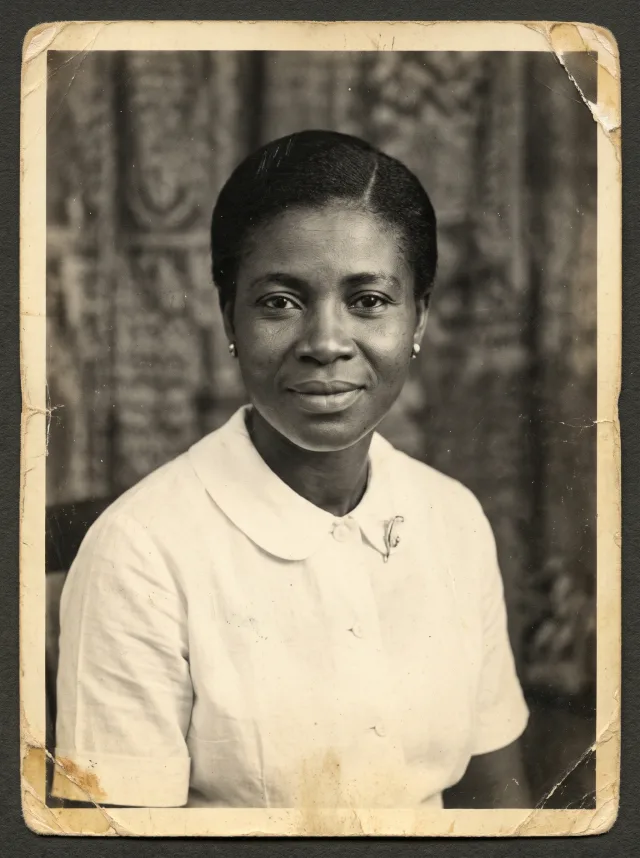
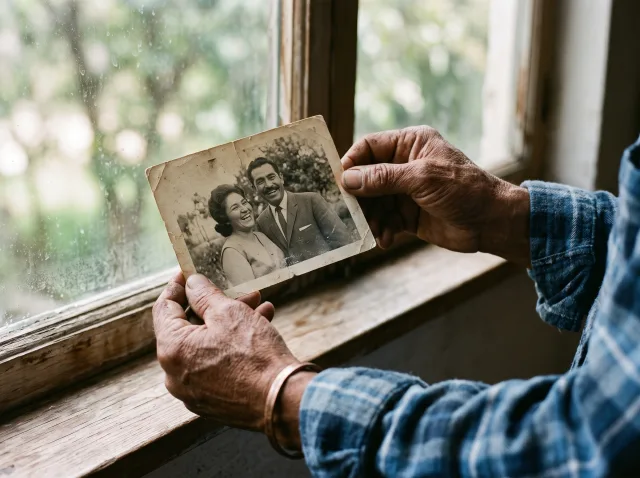
The photos on these cards are generated vintage-style examples, not real family photos.
Photograph the print before you animate it
Whichever tool you use, it only sees the copy you give it. A phone photo of a print taken in bad light brings its glare and shadows along, and an animated face makes those flaws far easier to spot than a still one does.
Take the print out of its frame or album sleeve first; glass and plastic throw reflections. Then shoot it in daylight from a window at your side, not behind you.
- No glare: tilt the print until the shine slides off the faces.
- Straight on: hold the phone level above the print so the edges stay square.
- The whole print: keep the white border in frame, then crop afterwards.
When it looks uncanny
Some people love seeing a grandparent blink; others find it unsettling. MyHeritage was blunt about what the result is: a guess at how a face might move, not a recording of how it did.
Two things make it look less strange. Ask for smaller movements: a slow blink and a slight turn hold up better than a laugh. And look closely at what came back. In our run on the teacher portrait at the top of this page, the tool did more than we asked: the black-and-white print turned into colour and her lips moved as if she were speaking. Photo animators often change more of the picture than the sentence asks for.
Never make someone who has died appear to say words they never said. If you want a photo to speak, our guide to making a picture talk covers when that’s fine and when it isn’t.
the end result is not authentic
MyHeritage blog, February 2021
When a different tool fits better
Not a contest: each one is the smoother path for some photos and some people.
MyHeritage is the smoother path when…
Your family tree and scans already live in a MyHeritage account, you want relatives to see the animations next to the tree, or you’d like the face-only Deep Nostalgia look without writing anything.
Another tool is the smoother path when…
You want to say what happens yourself, the photo isn’t a family one (a pet, a shop, a holiday), or you’d rather not open a family-tree account. On AnimatePhotos you write one sentence, a clip costs 43 credits, the free credits for verifying your email pay for one, and a failed run gives its credits back.
OpenQuestions about Deep Nostalgia
Is Deep Nostalgia still available?
When we checked on 12 Nov 2026, MyHeritage’s help centre still had an article called “What is Deep Nostalgia”, dated 21 July 2026. Its 2024 post presented LiveMemory as the next step, describing Deep Nostalgia as the feature that “animated a single face in a photo”.
Why does only one face move in Deep Nostalgia?
Because it was built to animate faces, one at a time. MyHeritage’s 2021 post said “only faces that have been detected by the algorithm can be animated”, so in a group photo each face is its own animation.
Can LiveMemory be used on a computer, or only the app?
Both, according to MyHeritage’s help centre in 2026: LiveMemory is “available on the MyHeritage website and mobile app for iOS and Android”. On the website it sits under the Photos tab.
What does the MyHeritage watermark look like?
For Deep Nostalgia, the 2021 post said non-subscribers see the MyHeritage logo in the bottom right of the animation. For LiveMemory, the 2024 post said “a watermark labeled ‘AI’ is added”.
Does MyHeritage use my photos to train its AI?
For LiveMemory, the 2024 launch post said MyHeritage “will not use them to train internal AI models”. That post covers LiveMemory; we didn’t find the same line for Deep Nostalgia, so check MyHeritage’s privacy terms if that matters to you.
How long does a Deep Nostalgia animation take?
MyHeritage said in 2021: “Animating one face in a photo typically takes between 10 to 20 seconds.” For comparison, our own clips on this page took 29 to 38 seconds each.
Can I choose how the face moves?
Not in Deep Nostalgia: it used a “pre-recorded driver video that we’ve prepared in advance”. LiveMemory gives more say; its help centre lists gestures that “include hugging, kissing, dancing, laughing, and singing”.
Is it okay to animate photos of living people?
MyHeritage’s own guidance was “Please use this feature on your own historical photos”. We’d add one rule: if the person is alive, ask them first, and send them the result before anyone else sees it.
Keep reading
Bring old photos to life
Restore, colorize, then animate one faded print, step by step.
Open
Animate a photo with AI for free
What six photo animators give for free, quoted from their pages.
Open
How to make a picture talk
Your own voice, a typed line, or lips that only look like talking.
Open
Photo restoration
Remove creases, scratches and fading before anything moves.
OpenTry the whole-scene kind on your own old photo
AnimatePhotos isn’t MyHeritage and has no family tree: you upload a photo and write what should happen. 43 credits a clip, and the free credits for verifying your email pay for the first one.